TL;DR
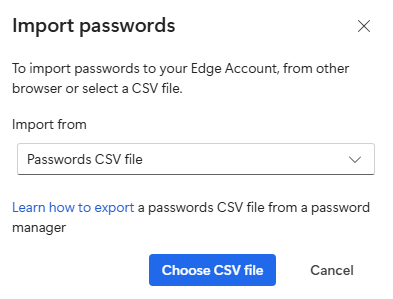
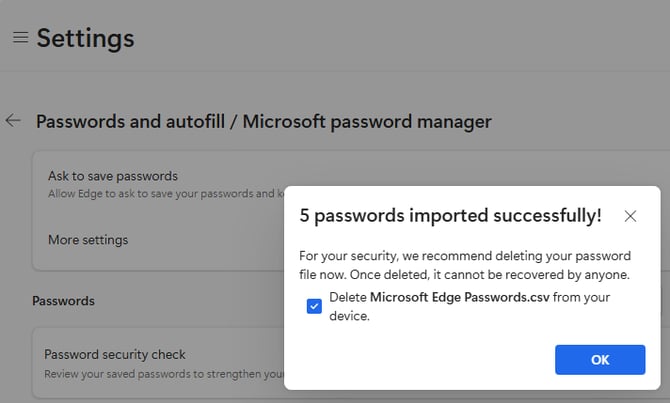
Edge and Chrome browser saved passwords are not migrated. Bookmarks are preserved. You need to manually export them pre-migration and re-import them.
Options:
EXCEPT…
If your use case is migrating from Hybrid Entra joined (or AD Joined) to Entra Joined “aka go Cloud native” and it is therefore the same user account logging in, and they are using signed-in Edge browser profiles then these passwords WILL be preserved post migration.
Workstation Migration
What happens with bookmarks / favourites and passwords during a migration?
- Favourites / Bookmarks are preserved.
- Passwords are not preserved.
That is because the current source logged in user's credentials are used to encrypt these passwords via DPAPI. The PowerSyncPro Migration Agent cannot circumvent the DPAPI (and should not be able to) and thus when the target user logs in, they are using different credentials and the passwords are not available.
Workarounds
The quicker workaround is export and import the passwords - if desired.
Microsoft Edge browser profiles
Pre-migration, when you use a signed in Edge browser profile:
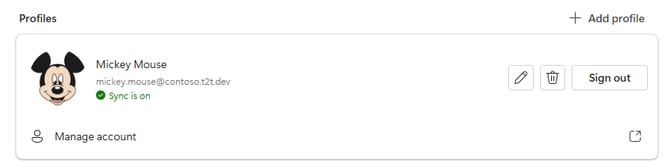
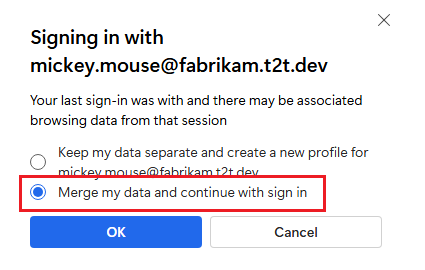
Then post migration you need to sign out with the current logged in account, and then sign-in with your correct target account. The profile date will be merged (if you accept this option). But passwords are still not available.
Microsoft Edge Post Migration
Chrome
If you are using a browser profile that is signed in with a Google account, and Google Password Manager, then passwords are preserved.
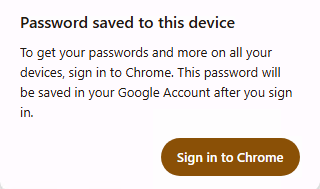
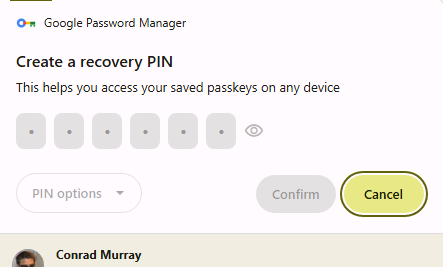
Chrome Post Migration
You will need to resume syncing
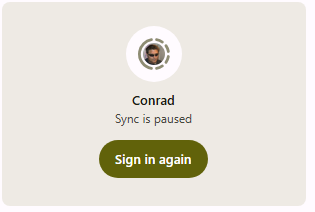
If you are using local browser profiles that are NOT signed in, then the passwords for those profiles are lost.
You will also need to sign out, and sign in again if you are using the Chrome Windows “Microsoft Single Sign On” extension.

Passwords
Microsoft Edge
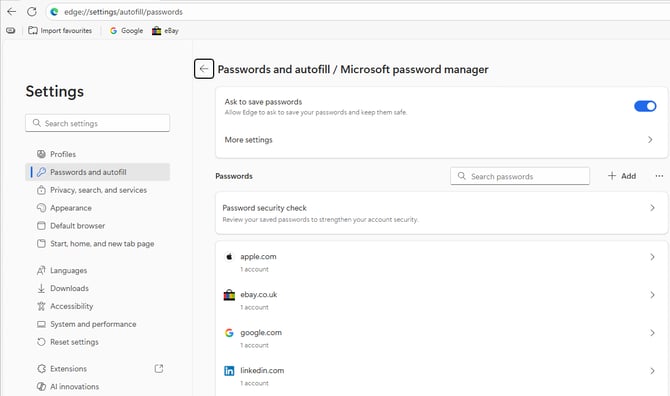
Chrome
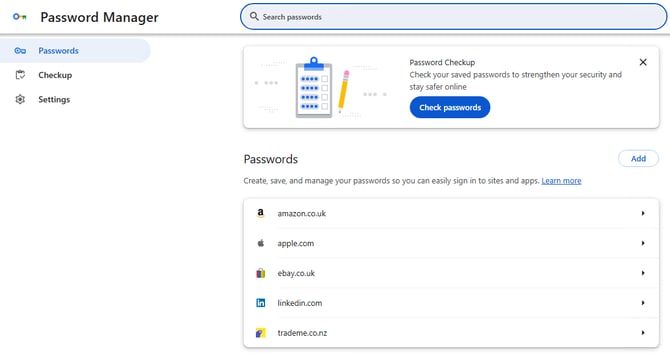
Export Passwords
Chrome
In Chrome, go Settings\Password and autofill\Google Password Manager
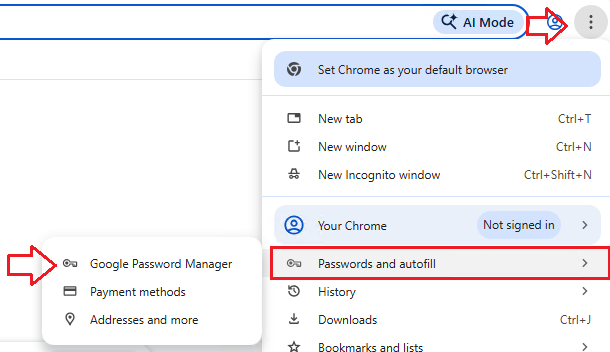
Settings\Export passwords
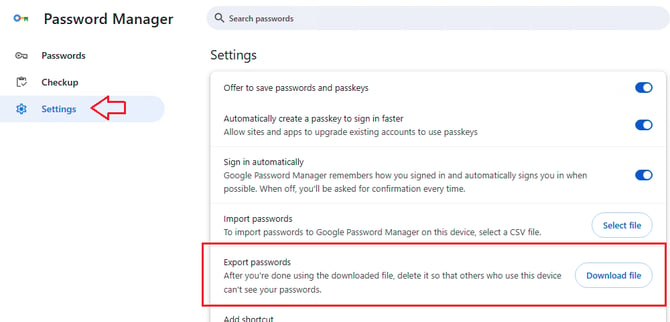
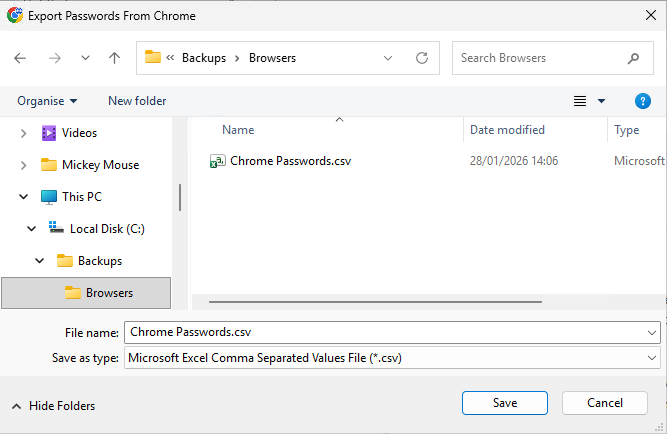
BEWARE This file is saved in plain text!
Microsoft Edge
A similar exercise: Three buttons top right hand corner, then Passwords (Settings\Passwords and autofill)
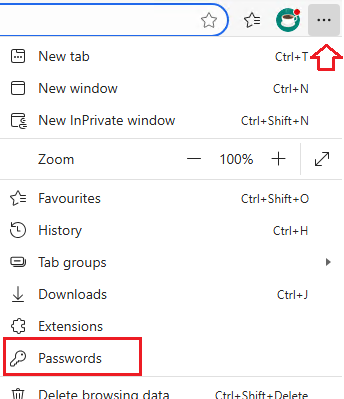
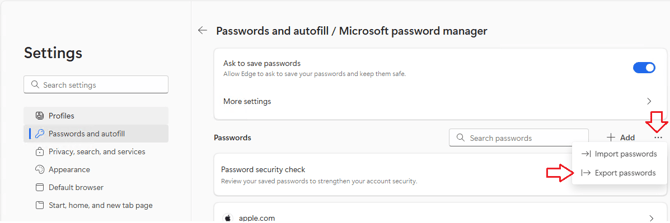
Again, BEWARE This file is saved in plain text!
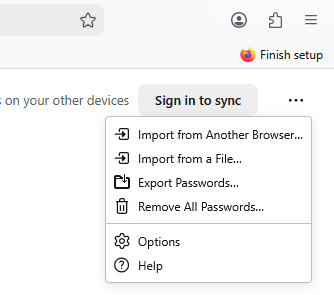
Firefox
Same routine…
Import Passwords
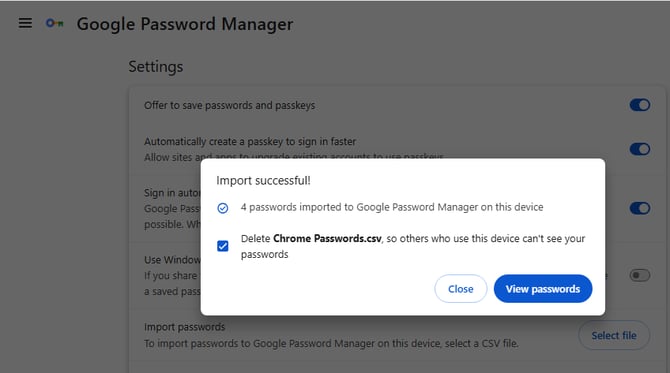
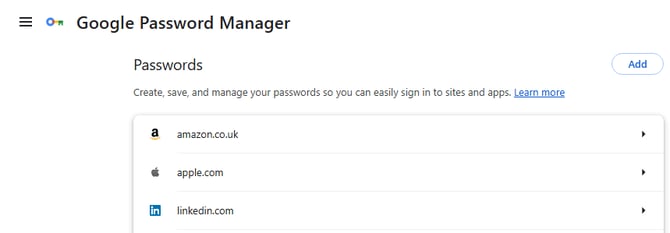
Chrome
Microsoft Edge