
Symptoms
When adding a Microsoft Entra ID directory to your PowerSyncPro server, you may receive the following error while saving the directory:
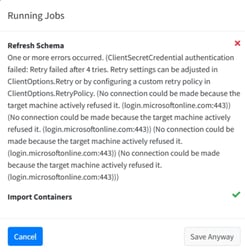
No connection could be made because the target machine actively refused it. (login.microsoftonline.com:443)
The PowerSyncPro log (C:\PowerSyncProLogs\PSP-YYYYMMDD.txt) may also contain entries similar to:
Azure.Identity.AuthenticationFailedException:
ClientSecretCredential authentication failed...

System.Net.Sockets.SocketException (10061):
No connection could be made because the target machine actively refused it. (login.microsoftonline.com:443)
You may find this confusing because browsing to https://login.microsoftonline.com from the server works without issue.
Cause
This typically occurs when the PowerSyncPro service is running under a different account than the interactive user.
In the environment where this issue was encountered:
- The logged-in administrator accessed the internet through a configured proxy.
- The PowerSyncPro service was running as a local service account.
- That service account did not have the same proxy configuration or network access, preventing it from reaching Microsoft Entra authentication endpoints.
As a result, the service could not authenticate even though the website was accessible from the administrator's desktop session.
Resolution
To confirm the root cause, temporarily configure the PowerSyncPro service to run as the same user account that successfully accesses the internet. If authentication succeeds, the issue is almost certainly related to the service account's network connectivity.
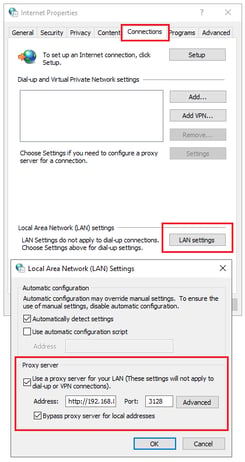
The recommended long-term solution is to work with your server and networking teams to ensure the service account can reach the required Microsoft 365 and Microsoft Entra endpoints. This may involve:
- Configuring the appropriate proxy settings.
- Allowing outbound HTTPS (TCP 443) access.
- Updating firewall or web filtering policies.
- Verifying that the service account can authenticate through any required proxy or security appliances.
Once the service account has the required connectivity, PowerSyncPro can be returned to running under the intended service account.
Important
If you have already configured directories, certificates, or other encrypted settings and then change the account running the PowerSyncPro service, you may encounter encryption-related issues because some configuration data is protected using the original service account.
For this reason, it is strongly recommended to resolve the connectivity issue before completing your PowerSyncPro configuration or changing the service account.