
A Group Managed Service Account (gMSA) provides a domain-managed identity whose password is automatically generated and rotated by Active Directory, eliminating the need to store or manually manage service account credentials. This improves security over traditional service accounts and offers better auditing, least-privilege control, and network authentication capabilities compared to running services as the local SYSTEM account.
This article will outline basic steps for setting up a gMSA and utilizing it with PowerSyncPro.
For detailed gMSA information please refer to this article Getting Started with Group Managed Service Accounts in Windows Server | Microsoft Learn
Setting up your AD for gMSA
Install AD features on the DC hosting the gMSA
Install-WindowsFeature -Name RSAT-AD-PowerShell Import-Module ActiveDirectory
Add KDS Key to Active Ddirectory
This only needs to be done once, if your AD is already utilizing gMSAs, this is not required.
Add-KDSRootKey -EffectiveTime ((Get-Date).AddHours(-10))
Create a New AD Group for your PSP Server(s)
New-ADGroup -Name "gMSA-PSP-Servers" `
       -GroupScope Global `
       -GroupCategory Security `
       -Path "<PATH TO OU Where Group Should be Created e.g OU=Service Accounts,DC=domain,DC=com>"
Add your PSP Server to the new group
Add-ADGroupMember -Identity "gMSA-PSP-Servers" -Members "PSPSERVER$"
Create gMSA account e.g.
New-ADServiceAccount `
       -Name "gmsa_psp" `
       -DNSHostName "domain.com" `
       -PrincipalsAllowedToRetrieveManagedPassword "gMSA-PSP-Servers" `
       -KerberosEncryptionType AES256
Specifying KerberosEncryptionType is belts and braces for when you have RC4 disabled (for example running a native 2025 forest) and can be used in all implementations
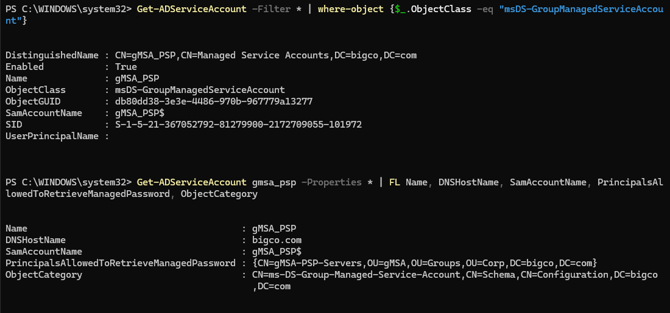
Check account was created
Get-ADServiceAccount -Filter * | where-object {$_.ObjectClass -eq "msDS-GroupManagedServiceAccount"}

Get-ADServiceAccount gmsa_psp -Properties * | FL Name, DNSHostName, SamAccountName,
PrincipalsAllowedToRetrieveManagedPassword, ObjectCategory
gMSA with Multiple PowerSyncPro Servers
If you have multiple PSP Servers i.e. Production and Staging, be sure to add all servers to the group linked to your gMSA.
Add-ADGroupMember -Identity "gMSA-PSP-Servers" -Members "PSPSERVER-PRI$","PSPSERVER-SEC$"
Installing your gMSA on the Server
Install & Test on Server(s) that needs to use it
You may need to reboot the server before the gMSA can be installed.
Install-ADServiceAccount gMSA-PSP Test-ADServiceAccount gMSA-PSP

Installing PowerSyncPro with a gMSA
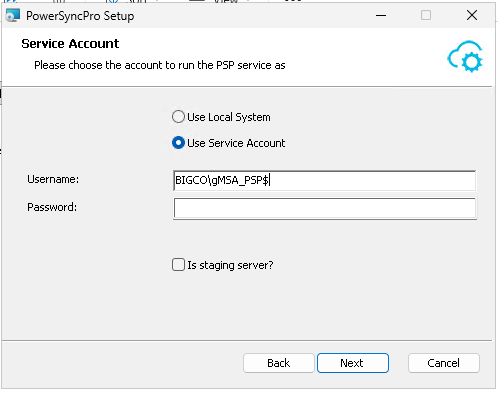
PSP Install
Where prompted at PSP Install screens list the gMSA account in this format:
YOURDOMAIN\gMSA-PSP$
When using the Automated Install Script
If utilizing the Automated Install Script for installation using a gMSA, this should be your course of action:
- Setup / Install gMSA on Server
- Setup SQL Instance (if using a local instance, add permissions for the gMSA)
- Run the Automated Install Script utilizing the “-PrereqOnly” flag.
- This will install necessary dependencies for PowerSyncPro.
- Run the PowerSyncPro MSI Installer and utilize the gMSA for the service account.
- You should not need to setup Remote Agents, Reverse Proxy, etc. The install script will handle this.
- Complete the installation by running the install script utilizing the “-CompletionOnly” flag.
- This will complete setup tasks and install your certificate.
SQL permissions
The gMSA account will need to have permissions to create and modify databases in SQL in your environment. (sa/dbo rights)
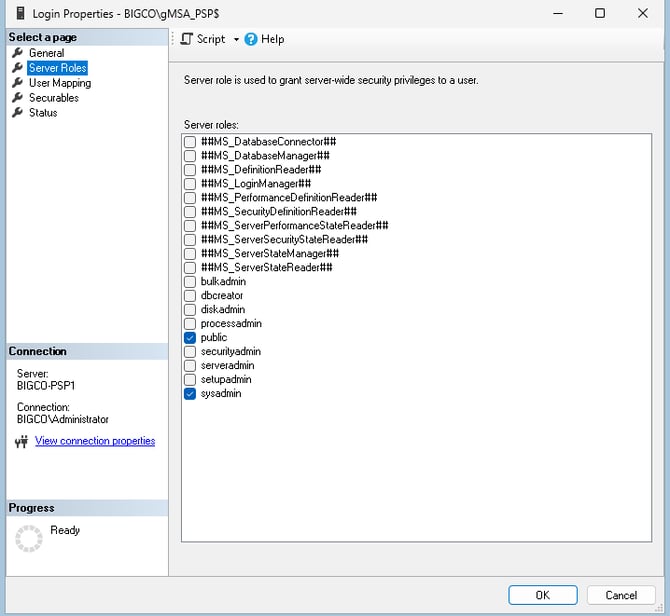
Furthermore, for more complex or high security environments, you may need to assign logon rights to SQL for the gMSA account too.