
Introduction
The Translation Table is often overlooked, yet it is one of the most important parts of a migration project. It maps source users to their corresponding target accounts, providing the link needed for a successful transition. When the Migration Agent runs, it relies on this mapping to re-permission user profiles, files, and applications.
Without a populated Translation Table, devices will fail to re-permission and users may lose access to data. Think of it as the glue holding the migration together. Security Identifiers (SIDs) are an integral part of windows permissioning, this unique string helps identify users, groups or computer accounts. During the permissioning phase of a PowerSyncPro migration the original (source) SIDs are replaced by the new (target) SID. The translation table is used by the migration agent to rewrite the SIDs. Therefore, always check and validate the Translation Table before running any migration batches in a production environment.
Profile Did Not Migrate / Translation Table Not Populated
If the Translation Table is empty or missing users, the Migration Agent cannot match the source user SID to the target user SID. The Windows profile may not be re-permissioned correctly, which can make it look like the profile did not migrate after the Windows 10/11 migration.
Before migrating a device, confirm the required users appear in the Translation Table. If they are missing, check the sync profile scope, match rules, imports/syncs, and message logs for unmatched users.
Where to View the Translation table
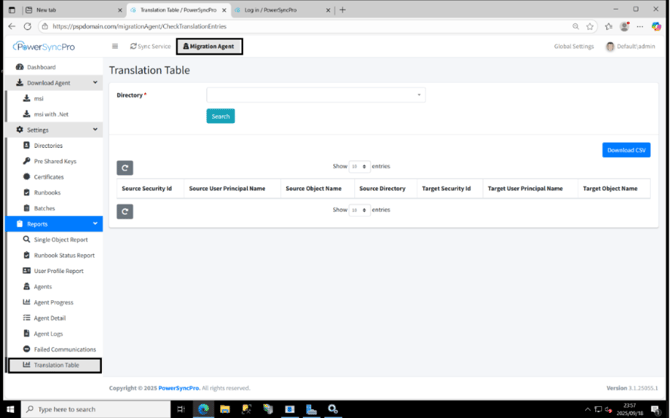
The translation table can be found under the migration agent tab at the bottom of the navigation panel:
How to Populate the Translation Table
Luckily, it is generated for you provided you follow the steps:
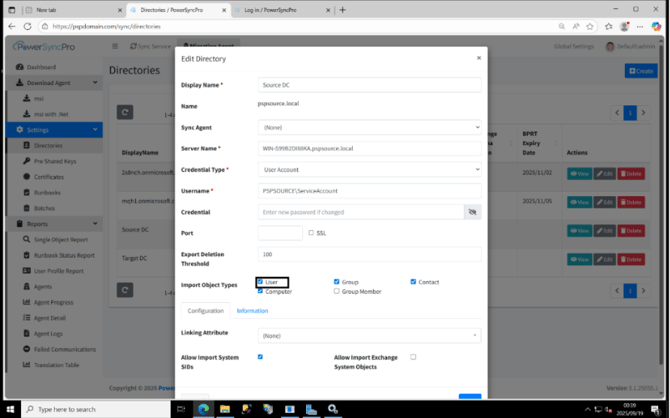
1) Import users
In your directory configuration make sure you have allowed users to be imported, even if you are only using the Migration agent product and not directory sync you still need to import users to allow the translation table to be populated.
2) Create a Sync Profile
- Even if you are only needing the Migration Agent you still need to use and understand the Directory Sync, which is available to everyone for importing directory schema to the PowerSyncPro database, without a directory sync license. The license is only required on exporting objects to a directory.
- PowerSyncPro will need to import the machines that need to be migrated to register the agent successfully, and users will need to be imported to construct the translation table.
- The sync profile shown is only an example of how users can be imported. It should not be copied exactly, as every environment is unique.
- All users that need to be migrated with the Migration Agent need to be in scope of at least one of your sync profiles, to ensure that user appears in your translation table.
- Note the translation table will be created using any sync action, create only, create or update, update only or match only. But if you have only purchased a license for Migration agent, a match only sync profile is the required option.
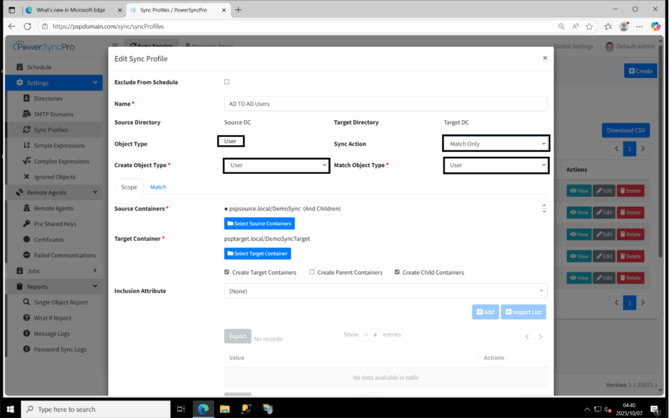
- set a matching attribute to link the source and the target users, this example matches on UPN, matches can be done on which ever attribute fits your environment. Provided the attribute value across source and target directories has the same value.
To rewrite your source UPN or mail attribute to the target ("first.last@source.com" -> first.last@target.com) you can raise a ticket with us to get assistance on mapping.
3) Check translation table
Your translation table should now be populated as expected
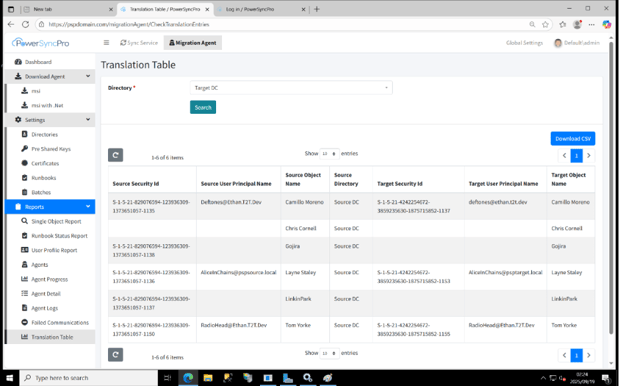
It is highly recommended to download the CSV and go through and ensure you are happy with the table, this check will prevent incorrect re-permissioning.
From PowerSyncPro version 3.2 onwards, the Batch UI displays the number of user profiles that will be translated when a specific batch is executed.
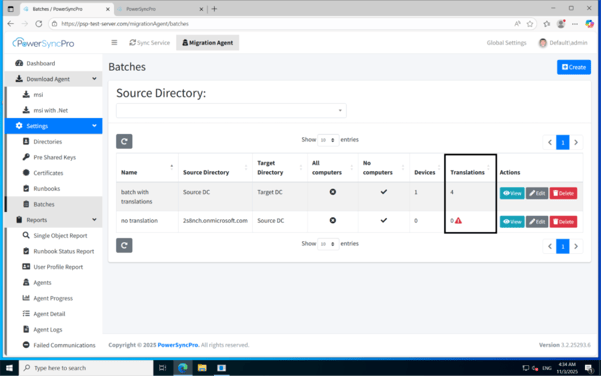
The Translations column includes a warning icon if no translations are detected (0 translations). When translations are present, the total number of translations for that batch is displayed. This feature is designed to help prevent migrations from being executed without any user profiles being translated.